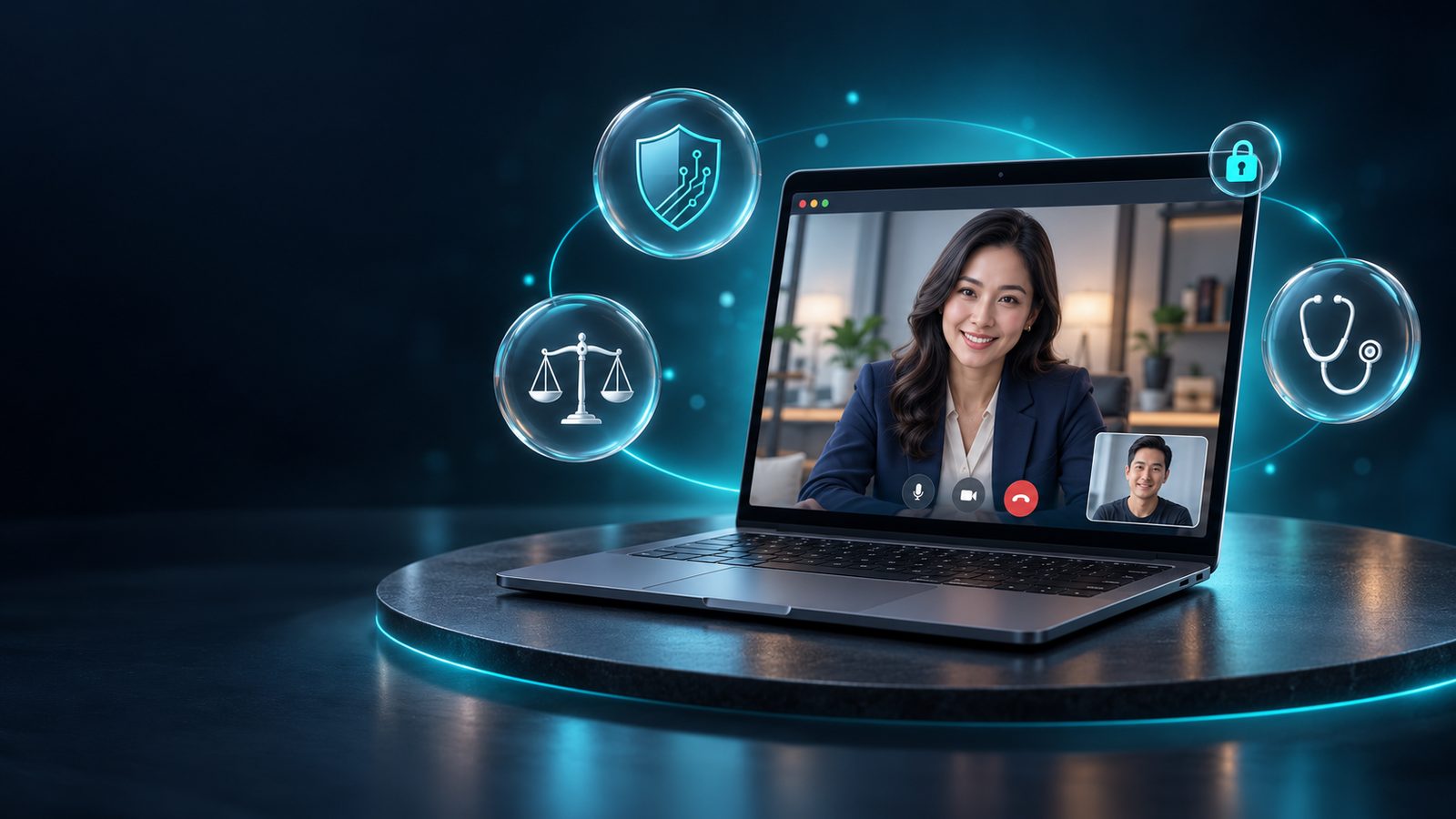
แพลตฟอร์มให้คำปรึกษาทางไกล ที่รักษาความลับ และเชื่อถือได้A remote consultation platform built for confidentiality and trust
USEE ช่วยให้ผู้เชี่ยวชาญด้านความมั่นคงปลอดภัยไซเบอร์ กฎหมาย และการแพทย์ ให้คำปรึกษาแก่ผู้รับบริการผ่านวิดีโอได้โดยตรงจากเว็บเบราว์เซอร์ โดยไม่ต้องติดตั้งโปรแกรมเพิ่มเติม และดำเนินการบนโครงสร้างพื้นฐานที่องค์กรควบคุมได้ทั้งหมดUSEE enables cybersecurity, legal and medical professionals to advise clients over video directly from a web browser, with no software to install, on infrastructure fully controlled by your organisation.
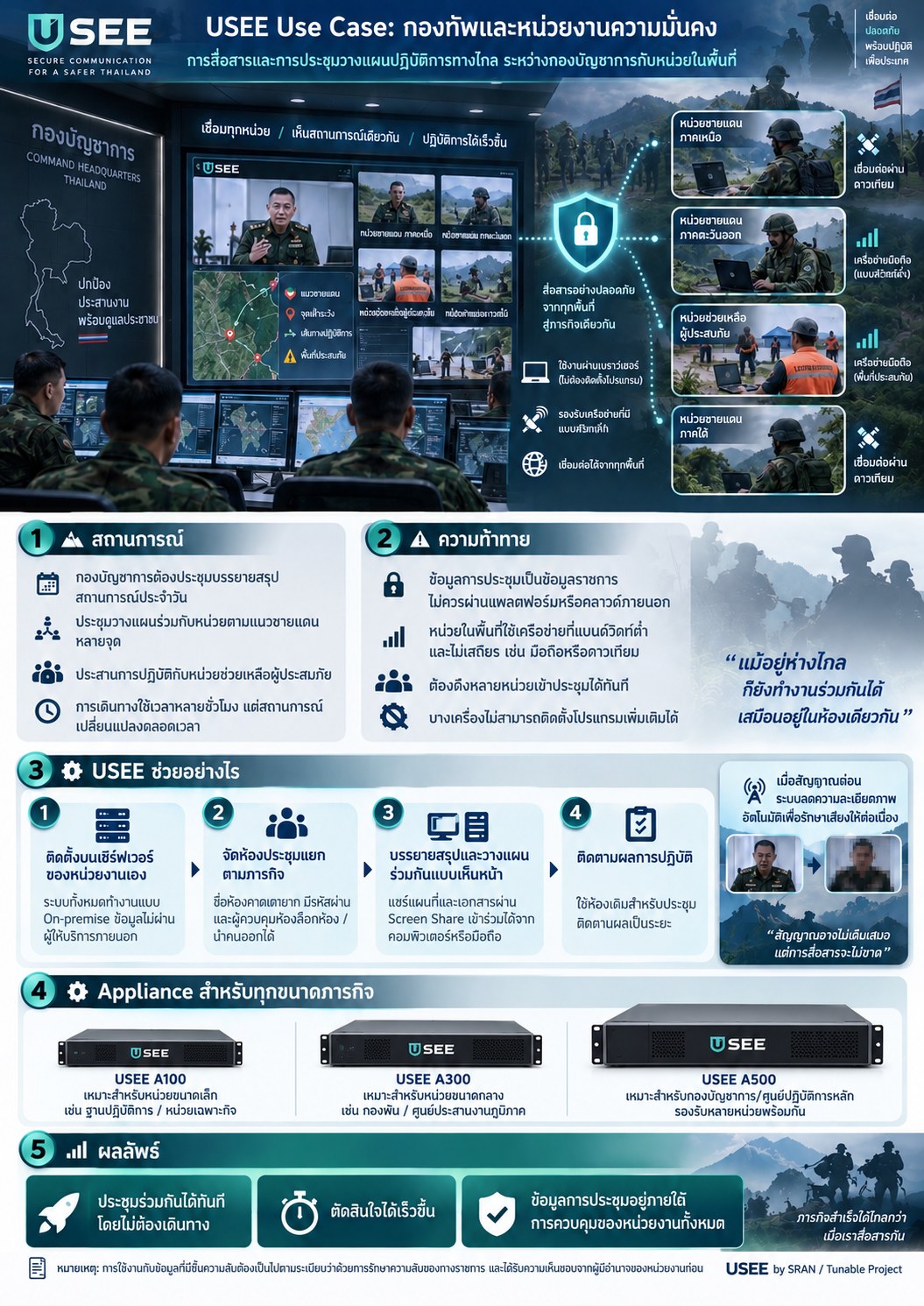
การสื่อสารและการประชุมวางแผนปฏิบัติการทางไกลระหว่างกองบัญชาการกับหน่วยในพื้นที่Secure communication and remote operational planning between headquarters and field units
แตะที่ภาพเพื่อดูขนาดเต็มTap to view full size
สถานการณ์Scenarioกองบัญชาการต้องประชุมบรรยายสรุปสถานการณ์ประจำวันและประชุมวางแผนปฏิบัติการร่วมกับหน่วยที่วางกำลังอยู่ตามแนวชายแดนหลายจุด รวมถึงประสานการปฏิบัติกับหน่วยช่วยเหลือผู้ประสบภัยในพื้นที่ การเดินทางมาประชุม ณ ที่ตั้งหน่วยใช้เวลาหลายชั่วโมง ขณะที่สถานการณ์เปลี่ยนแปลงตลอดเวลาและต้องตัดสินใจร่วมกันอย่างรวดเร็วA headquarters holds daily situation briefings and operational planning meetings with units deployed at several border locations, and coordinates with disaster-relief teams in the field. Travelling to meet takes hours, while the situation changes constantly and decisions must be made together, fast.
ความท้าทายChallenges
เนื้อหาการประชุมเป็นข้อมูลของทางราชการ จึงไม่ควรผ่านแพลตฟอร์มหรือคลาวด์ของผู้ให้บริการภายนอกที่หน่วยงานควบคุมไม่ได้Meeting content is official information and should not pass through third-party platforms or clouds the unit does not control.
หน่วยในพื้นที่ห่างไกลมีช่องทางสื่อสารจำกัด เช่น เครือข่ายโทรศัพท์เคลื่อนที่หรือดาวเทียม ซึ่งมีแบนด์วิดท์ต่ำและไม่เสถียรRemote units rely on limited links such as mobile or satellite networks, with low and unstable bandwidth.
ต้องรวบรวมหลายหน่วยเข้าประชุมพร้อมกันได้ทันที โดยบางหน่วยใช้เครื่องที่ติดตั้งโปรแกรมเพิ่มเติมไม่ได้Several units must join at once on short notice, some on machines where no software can be installed.
ภาพประกอบ: ติดตั้งเป็นอุปกรณ์ขนาด 1U ในตู้แร็กของหน่วยงาน ทำงานภายในเครือข่ายของหน่วยได้ทั้งหมด โดยไม่ต้องพึ่งบริการคลาวด์ภายนอกIllustration: a 1U appliance in the unit's own rack, running entirely inside the unit's network with no outside cloud service.
แนวทางการดำเนินการด้วย USEEHow USEE helps
ติดตั้งบนเซิร์ฟเวอร์ของหน่วยงานเองRun it on the unit's own serversระบบทั้งหมดรวมถึงเซิร์ฟเวอร์ส่งต่อสัญญาณภาพและเสียงติดตั้งภายในเครือข่ายของหน่วยงาน (On-premise) ข้อมูลการประชุมไม่ผ่านผู้ให้บริการภายนอกThe whole system, including the media relay, is installed inside the unit's network (on-premise); meeting data never passes through an outside provider.
จัดห้องประชุมแยกตามภารกิจOne room per missionกำหนดชื่อห้องที่คาดเดาได้ยากและรหัสผ่านสำหรับแต่ละภารกิจ ผู้ควบคุมการประชุมล็อกห้องและนำผู้ที่ไม่เกี่ยวข้องออกจากห้องได้A hard-to-guess room and password per mission; the meeting moderator can lock the room and remove anyone who should not be there.
บรรยายสรุปและวางแผนร่วมกันแบบเห็นหน้าBrief and plan face to faceฝ่ายเสนาธิการนำเสนอแผนที่สถานการณ์และเอกสารประกอบการวางแผนผ่านการแบ่งปันหน้าจอ หน่วยในพื้นที่เข้าร่วมได้จากคอมพิวเตอร์หรือโทรศัพท์มือถือ เมื่อสัญญาณอ่อน ระบบลดความละเอียดภาพโดยอัตโนมัติเพื่อรักษาเสียงให้ต่อเนื่องStaff officers share situation maps and planning documents on screen; field units join from a computer or phone. On a weak link, video resolution drops automatically to keep audio flowing.
ติดตามผลการปฏิบัติFollow up on executionใช้ห้องเดิมสำหรับการประชุมติดตามผลเป็นระยะ ส่วนคำสั่งที่เป็นทางการยังคงออกผ่านช่องทางของทางราชการตามระเบียบReuse the room for regular follow-ups; formal orders still go out through official channels as regulations require.
ผลลัพธ์: กองบัญชาการและหน่วยในพื้นที่ประชุมร่วมกันได้ทันทีโดยไม่ต้องเดินทาง ตัดสินใจได้เร็วขึ้น และข้อมูลการประชุมอยู่ในความควบคุมของหน่วยงานทั้งหมดOutcome: headquarters and field units meet at once without travelling, decisions come faster, and meeting data stays entirely under the unit's control.
หมายเหตุ: การใช้งานกับข้อมูลที่มีชั้นความลับต้องเป็นไปตามระเบียบว่าด้วยการรักษาความลับของทางราชการ และได้รับความเห็นชอบจากผู้มีอำนาจของหน่วยงานก่อนNote: use with classified information must follow government security regulations and be approved by the unit's authorities first.
Use case 02
การติดตามอาการผู้ป่วยโรคเรื้อรังทางไกลที่ผู้สูงอายุสามารถใช้งานได้ด้วยตนเองRemote follow-ups for chronic patients that older people can use on their own
สถานการณ์Scenarioคลินิกอายุรกรรมของโรงพยาบาลมีผู้ป่วยโรคเบาหวานและโรคความดันโลหิตสูงที่ต้องเข้ารับการติดตามอาการทุก 1–3 เดือน ผู้ป่วยจำนวนมากเป็นผู้สูงอายุที่พำนักอยู่ต่างอำเภอ ต้องเดินทางไกลและรอรับบริการเป็นเวลานาน ทั้งที่การตรวจติดตามส่วนใหญ่ใช้เวลาเพียง 10–15 นาทีA hospital’s internal-medicine clinic follows up diabetes and hypertension patients every 1–3 months. Many are older people living in other districts who travel far and wait for hours, although most follow-ups take only 10–15 minutes.
ความท้าทายChallenges
ผู้ป่วยสูงอายุไม่คุ้นเคยกับเทคโนโลยี การเข้าห้องจึงต้องมีขั้นตอนน้อยที่สุดOlder patients are not confident with technology — joining must take only a few steps.
สัญญาณอินเทอร์เน็ตในพื้นที่ห่างไกลไม่เสถียร แต่การสื่อสารด้วยเสียงต้องต่อเนื่องRural internet is unreliable; audio must not drop.
ข้อมูลสุขภาพเป็นข้อมูลส่วนบุคคลที่มีความอ่อนไหวตาม PDPA การจัดเก็บและการเข้าถึงต้องตรวจสอบย้อนหลังได้Health data is sensitive under PDPA and every access must be accountable.
แนวทางการดำเนินการด้วย USEEHow USEE helps
รับลิงก์นัดหมายทาง LINEGet the appointment link on LINEระบบจัดส่งลิงก์และการแจ้งเตือนก่อนถึงเวลานัด ผู้ป่วยเปิดลิงก์และยืนยันตัวตนด้วยรหัส OTPThe system sends the link and reminders; the patient taps it and confirms with an OTP.
ตรวจสอบกล้อง ไมโครโฟน และการเชื่อมต่อก่อนเข้าห้องCheck camera, mic and network firstแสดงคำแนะนำภาษาไทยพร้อมภาพประกอบเมื่อพบปัญหา และมีช่องทางขอความช่วยเหลือจากเจ้าหน้าที่Thai guidance with pictures when something fails, plus a button to ask staff for help.
รอรับบริการในห้องรอเข้าพบWait in the waiting roomแสดงลำดับคิวและระยะเวลารอโดยประมาณ พร้อมแจ้งเตือนเมื่อแพทย์เรียกเข้าพบSee the queue position and estimated wait; an alert sounds when the doctor calls.
เข้าพบแพทย์โดยให้ความสำคัญกับเสียงเป็นลำดับแรกSee the doctor — audio firstหากการเชื่อมต่อไม่เสถียร ระบบจะแนะนำให้ปิดกล้องเพื่อรักษาคุณภาพเสียง และแพทย์บันทึกผลการตรวจควบคู่กับหน้าจอวิดีโอOn a weak connection the system suggests turning the camera off for clearer audio; the doctor writes notes beside the video.
คุณสมบัติที่เกี่ยวข้องFeatures used
การประชุมวิดีโอผ่านเว็บเบราว์เซอร์Browser video callOTP / LINE LoginOTP / LINE Loginการตรวจสอบอุปกรณ์ก่อนเข้าห้องPre-call checkห้องรอเข้าพบและระบบคิวWaiting room & queueโหมดสนทนาด้วยเสียงAudio-only modeการบันทึกเวชระเบียนแบบ SOAPSOAP notes
ผลลัพธ์: ผู้ป่วยไม่ต้องเดินทางมาโรงพยาบาลสำหรับการติดตามอาการทั่วไป คลินิกลดความแออัด และแพทย์มีเวลาให้ผู้ป่วยที่ต้องตรวจร่างกายจริงมากขึ้นOutcome: patients skip the trip for routine follow-ups, the clinic is less crowded, and doctors have more time for patients who need an in-person exam.
Use case 03
การตรวจประเมินตามมาตรฐาน ISO/IEC 27001 และการจัดตั้งศูนย์บัญชาการเมื่อเกิดเหตุภัยคุกคามISO/IEC 27001 assessments and an incident war room when threats hit
สถานการณ์Scenarioบริษัทที่ปรึกษาด้านความมั่นคงปลอดภัยสารสนเทศให้บริการแก่องค์กรลูกค้าหลายแห่ง ซึ่งต้องดำเนินการ Gap Assessment ก่อนยื่นขอการรับรอง ISO/IEC 27001:2022 โดยต้องสัมภาษณ์เจ้าของกระบวนการในหลายหน่วยงาน และตรวจสอบหลักฐาน เช่น นโยบาย บันทึกการทำงานของระบบ และผลการสแกนช่องโหว่ ต่อมาองค์กรลูกค้ารายหนึ่งตรวจพบสัญญาณของ ransomware และต้องการคำแนะนำจากผู้เชี่ยวชาญโดยเร่งด่วนภายในหนึ่งชั่วโมงA security consultancy supports several clients preparing for ISO/IEC 27001:2022 certification. It interviews process owners across departments and reviews evidence such as policies, system logs and vulnerability scans. One day a client detects signs of ransomware and needs expert guidance within the hour.
ความท้าทายChallenges
หลักฐานการตรวจประเมินเป็นข้อมูลอ่อนไหว จึงไม่ควรส่งผ่านแพลตฟอร์มสาธารณะที่ไม่สามารถระบุแหล่งจัดเก็บข้อมูลได้Audit evidence is sensitive and should not pass through public platforms of unknown data residency.
เครื่องคอมพิวเตอร์ของผู้บริหารและทีมเทคโนโลยีสารสนเทศถูกจำกัดสิทธิ์ ไม่สามารถติดตั้งโปรแกรมเพิ่มเติมได้Client executives and IT staff use locked-down machines and cannot install apps.
ในสถานการณ์ฉุกเฉิน ต้องรวบรวมผู้เกี่ยวข้องได้ทันทีโดยไม่ต้องสร้างบัญชีผู้ใช้During an incident every minute counts — people must join instantly, without creating accounts.
แนวทางการดำเนินการด้วย USEEHow USEE helps
จัดตั้งห้องประชุมเฉพาะโครงการOpen a dedicated roomกำหนดชื่อห้องที่คาดเดาได้ยากแยกตามองค์กรลูกค้า และกำหนดรหัสผ่านสำหรับเข้าห้องCreate a hard-to-guess room per client and lock it with a room password.
สัมภาษณ์และตรวจสอบหลักฐานแบบเรียลไทม์Interview and review evidence liveผู้รับการตรวจนำเสนอ SoA, Risk Register หรือบันทึกระบบผ่านการแบ่งปันหน้าจอ โดยไม่ต้องส่งไฟล์ออกนอกองค์กรClients screen-share their SoA, risk register or logs without sending files outside the organisation.
จัดตั้งศูนย์บัญชาการ (War Room) ได้ภายในไม่กี่นาทีA war room in minutesเมื่อเกิดเหตุ ผู้บริหารความมั่นคงปลอดภัยสารสนเทศ (CISO) ทีมเทคโนโลยีสารสนเทศ และผู้บริหาร สามารถเข้าร่วมได้ทันทีผ่านลิงก์เดียวWhen an incident hits, one link brings the CISO, IT team and executives together straight from the browser.
ติดตามผลการดำเนินการแก้ไขFollow up on remediationจัดประชุมติดตามความคืบหน้าของแผนแก้ไขและมาตรการแก้ไข (Corrective Action) อย่างต่อเนื่องHold regular follow-ups on the remediation plan and corrective actions.
ผลลัพธ์: ที่ปรึกษาให้บริการลูกค้าได้หลายรายโดยไม่ต้องเดินทาง ข้อมูลหลักฐานไม่ต้องออกจากมือลูกค้า และตอบสนองเหตุการณ์ได้เร็วขึ้นOutcome: consultants serve more clients without travelling, evidence never leaves the client’s hands, and incident response starts sooner.
Use case 04
การให้คำปรึกษาด้านกฎหมายอย่างรักษาความลับ ตั้งแต่สัญญาทางธุรกิจจนถึงข้อพิพาทConfidential legal advice — from business contracts to disputes
สถานการณ์Scenarioสำนักงานกฎหมายขนาดกลางให้บริการแก่ลูกความทั้งในกรุงเทพมหานครและส่วนภูมิภาค ลูกความซึ่งเป็นวิสาหกิจขนาดกลางและขนาดย่อมรายหนึ่งประสงค์ให้ทนายความตรวจร่างสัญญาจ้างผลิตก่อนลงนามภายใน 2 วัน ขณะที่ลูกความอีกรายต้องการคำแนะนำเกี่ยวกับการปฏิบัติตามพระราชบัญญัติคุ้มครองข้อมูลส่วนบุคคลภายหลังเกิดเหตุข้อมูลรั่วไหล ทั้งสองกรณีต้องการปรึกษาทนายความแบบเห็นหน้าและเป็นความลับA mid-sized law firm serves clients in Bangkok and the provinces. One SME needs a manufacturing contract reviewed before signing in two days; another needs PDPA advice after a customer-data leak. Both want a face-to-face, confidential conversation with their lawyer.
ความท้าทายChallenges
เนื้อหาการปรึกษาเป็นความลับระหว่างทนายความกับลูกความ จึงต้องมั่นใจได้ว่าไม่มีบุคคลภายนอกเข้าร่วมLawyer–client communications are privileged; nobody else may enter the room.
ลูกความไม่สะดวกเดินทางมายังสำนักงาน และบางรายไม่คุ้นเคยกับการใช้เทคโนโลยีClients can’t easily travel to the office, and some are not tech-savvy.
จำเป็นต้องพิจารณาเอกสารร่วมกันระหว่างการปรึกษาDocuments must be read and marked up together during the call.
แนวทางการดำเนินการด้วย USEEHow USEE helps
จัดส่งลิงก์นัดหมายแก่ลูกความSend the client a meeting linkจัดส่งผ่าน LINE หรืออีเมล ลูกความสามารถเข้าร่วมได้ทันทีจากโทรศัพท์มือถือหรือคอมพิวเตอร์Share it via LINE or email; the client joins from phone or computer with one tap.
จำกัดการเข้าห้องเฉพาะคู่สนทนาLock the room to the two partiesกำหนดรหัสผ่านห้องประชุม และในระยะถัดไปจะยืนยันตัวตนลูกความด้วยรหัส OTP ก่อนเข้าห้องSet a room password — and, soon, verify the client with an OTP before entry.
พิจารณาร่างสัญญาร่วมกันReview the contract togetherทนายความนำเสนอเอกสารผ่านการแบ่งปันหน้าจอ อธิบายประเด็นเป็นรายข้อ และบันทึกประเด็นสำคัญในช่องสนทนาThe lawyer shares the screen, walks through each clause and notes key points in chat.
สรุปผลและนัดหมายครั้งถัดไปWrap up and book the next sessionสรุปแนวทางดำเนินการและเอกสารที่ต้องจัดเตรียม พร้อมกำหนดการนัดติดตามผลAgree on next steps and the documents to prepare, then schedule a follow-up.
ผลลัพธ์: ลูกความได้คำปรึกษาเร็วขึ้นโดยไม่ต้องเดินทาง สำนักงานรับงานจากต่างจังหวัดได้มากขึ้น และมั่นใจเรื่องความลับของการสนทนาOutcome: clients get advice sooner without travelling, the firm takes on more provincial work, and conversations stay confidential.
คุณสมบัติCapabilities
ประชุมและให้คำปรึกษาทางไกลได้ทันที ผ่านเบราว์เซอร์และ LINEMeet and consult remotely today — in the browser and through LINE
การเชื่อมต่อกับเว็บไซต์และห้องประชุมใช้ TLS 1.3 พร้อมการแลกเปลี่ยนกุญแจแบบผสม X25519 + ML-KEM-768 ตามมาตรฐาน NIST FIPS 203 ป้องกันการดักเก็บข้อมูลไว้ถอดรหัสในอนาคตด้วยคอมพิวเตอร์ควอนตัม (Harvest now, decrypt later)Connections to the website and meeting rooms use TLS 1.3 with a hybrid X25519 + ML-KEM-768 key exchange (NIST FIPS 203), protecting against traffic recorded today and decrypted later by quantum computers (harvest now, decrypt later).
เบราว์เซอร์รุ่นล่าสุด (Chrome, Edge, Firefox, Safari) ใช้โหมด Post-Quantum ให้อัตโนมัติCurrent Chrome, Edge, Firefox and Safari use post-quantum mode automatically
อุปกรณ์รุ่นเก่ายังเชื่อมต่อได้ด้วยการเข้ารหัสแบบเดิม ไม่มีผู้ใช้ตกหล่นOlder devices still connect with classic encryption — nobody is locked out
ครอบคลุมการเข้าห้อง แชท และข้อมูลควบคุมการประชุม ส่วนภาพและเสียงเข้ารหัสด้วย DTLS-SRTP ตามมาตรฐาน WebRTCCovers joining, chat and meeting control; audio and video are encrypted with DTLS-SRTP, the WebRTC standard
การประชุมวิดีโอคุณภาพสูงHigh-quality video meetings
ปรับความละเอียดของภาพโดยอัตโนมัติตามความเร็วอินเทอร์เน็ตของผู้เข้าร่วมแต่ละคน เพื่อให้การสนทนาต่อเนื่องVideo resolution adapts automatically to each participant’s connection to keep the conversation flowing.
ใช้งานได้ทั้งบนคอมพิวเตอร์และโทรศัพท์มือถือWorks on computers and phones
เข้าร่วมผ่านลิงก์ ไม่ต้องติดตั้งโปรแกรมJoin by link, nothing to install
เปิดลิงก์ห้องประชุมจากเว็บเบราว์เซอร์ Chrome, Safari หรือ Edge แล้วเข้าร่วมได้ทันที ไม่ต้องสมัครสมาชิกOpen the room link in Chrome, Safari or Edge and join straight away — no sign-up.
ตั้งชื่อห้องเองเพื่อนัดประชุมล่วงหน้าได้Choose a room name to set meetings up in advance
ส่งลิงก์ทาง LINE อีเมล หรือ SMS ได้ตามสะดวกShare the link by LINE, email or SMS
ใช้งานผ่าน LINEUse it through LINE
สร้างห้องประชุมและเชิญเพื่อนหรือกลุ่มใน LINE ได้ในไม่กี่ขั้นตอน ผ่าน LINE Official Account @536gwpfcCreate a room and invite LINE friends or groups in a few steps, through the LINE Official Account @536gwpfc.
ลิงก์ที่แตะจากแชท LINE เปิดห้องประชุมในเบราว์เซอร์ของโทรศัพท์ให้อัตโนมัติLinks tapped in LINE open the room in the phone browser automatically
ชื่อผู้เข้าร่วมถูกใส่ให้ล่วงหน้าเมื่อเข้าห้องจากหน้าเริ่มประชุมYour name is filled in when you join from the start page
แบ่งปันหน้าจอ แชท และยกมือScreen sharing, chat and raise hand
นำเสนอเอกสาร ผลการตรวจ หรือหลักฐานการตรวจประเมินผ่านการแบ่งปันหน้าจอ พร้อมช่องสนทนาภายในห้องPresent documents, results or audit evidence by sharing your screen, with chat inside the room.
แบ่งปันหน้าจอจากคอมพิวเตอร์ได้ทั้งหน้าจอหรือเฉพาะหน้าต่างShare a whole screen or one window from a computer
ยกมือขอพูดเพื่อให้การประชุมเป็นระเบียบRaise hand to keep meetings orderly
ห้องประชุมส่วนตัวบนเซิร์ฟเวอร์ที่ดูแลเองPrivate rooms on self-hosted servers
เชื่อมต่อผ่าน HTTPS และเข้ารหัสภาพและเสียงด้วย DTLS-SRTP บนเซิร์ฟเวอร์ที่ทีมดูแลเอง ไม่ผ่านผู้ให้บริการประชุมภายนอกHTTPS connections and DTLS-SRTP encrypted audio and video on servers the team runs itself — no outside meeting provider.
ผู้ควบคุมการประชุมกำหนดรหัสผ่านห้องได้Moderators can set a room password
ไม่บันทึกวิดีโอการประชุมโดยอัตโนมัติMeetings are not recorded automatically
เชื่อมต่อได้แม้อยู่หลังไฟร์วอลล์องค์กรConnects from behind corporate firewalls
มีเซิร์ฟเวอร์ TURN ของระบบเองทั้งผ่าน UDP และ TLS ช่วยให้ผู้ใช้ในเครือข่ายองค์กรที่มีไฟร์วอลล์เข้าประชุมได้Our own TURN servers over UDP and TLS help people behind corporate firewalls join meetings.
ส่งต่อสัญญาณผ่านเซิร์ฟเวอร์ของระบบเมื่อเชื่อมต่อระหว่างเครื่องโดยตรงไม่ได้Media is relayed through our servers when a direct connection is not possible
เริ่มต้นใช้งานGetting started
เริ่มให้บริการคำปรึกษาได้ใน 3 ขั้นตอนBegin providing consultations in three steps
STEP 01
จัดตั้งห้องประชุมOpen a room
เข้าสู่ useelive.sran.net กำหนดชื่อห้องที่คาดเดาได้ยาก แล้วเลือก “Start meeting”Go to useelive.sran.net, choose a hard-to-guess room name and start.
STEP 02
กำหนดรหัสผ่านและจัดส่งลิงก์Lock and share
กำหนดรหัสผ่านห้องในเมนูความปลอดภัย และจัดส่งลิงก์กับรหัสผ่านให้ผู้รับบริการแยกช่องทางกันSet a password in the security menu, then send the link and password over separate channels.
STEP 03
ดำเนินการให้คำปรึกษาConsult
ผู้รับบริการอนุญาตการใช้กล้องและไมโครโฟนในเว็บเบราว์เซอร์ จากนั้นสามารถเริ่มการสนทนาและแบ่งปันหน้าจอได้ทันทีThe client allows camera and mic in the browser, and you are ready to talk and share screens.
ความปลอดภัยและ PDPASecurity & PDPA
การรักษาความลับของผู้รับบริการคือหัวใจของงานให้คำปรึกษาClient confidentiality is fundamental to professional advisory services
ติดตั้งบนโครงสร้างพื้นฐานขององค์กรSelf-hosted end to endภาพ เสียง และข้อมูลการประชุมไม่ผ่านผู้ให้บริการประชุมออนไลน์ภายนอกAudio, video and meeting data never pass through a third-party meeting provider.
เข้ารหัสทุกการเชื่อมต่อ พร้อมป้องกันภัยควอนตัมEncrypted in transit, quantum-resistantการเชื่อมต่อเว็บใช้ TLS 1.3 แบบผสม X25519 + ML-KEM-768 (Hybrid PQC) และสื่อภาพและเสียงเข้ารหัสด้วย DTLS-SRTPTLS 1.3 with hybrid X25519 + ML-KEM-768 (PQC) for the app, and DTLS-SRTP for media.
ควบคุมสิทธิ์การเข้าห้องประชุมControl who gets inรองรับการกำหนดรหัสผ่านห้องในปัจจุบัน และการผูกสิทธิ์เข้าห้องกับนัดหมายพร้อมยืนยันด้วย OTP ในระบบ TeleConsultPassword rooms today; appointment-bound access with OTP in TeleConsult.
สอดคล้องกับ PDPAPDPA-readyขอความยินยอมก่อนการใช้งาน บันทึกประวัติการเข้าถึงข้อมูล (audit log) ทุกครั้ง และไม่จัดเก็บข้อมูลส่วนบุคคลในบันทึกของระบบ (TeleConsult)Consent before first use, audit log on every access, and no personal data in system logs (TeleConsult).
ตัวชี้วัดที่ใช้เป็นเกณฑ์ในการออกแบบระบบ TeleConsultDesign targets for the TeleConsult system
≤ 3ขั้นตอนจากการเปิดลิงก์ถึงห้องรอเข้าพบsteps from link to waiting room
≤ 3 sระยะเวลาเชื่อมต่อเมื่อถึงคิว (p95)to connect once called (p95)
< 1%อัตราการเชื่อมต่อล้มเหลวเมื่อใช้ TURNcalls failing even via TURN
16 px+ขนาดตัวอักษรที่เหมาะสมสำหรับผู้สูงอายุtext size for older users
FAQ
คำถามที่พบบ่อยFrequently asked questions
ผู้รับบริการต้องติดตั้งโปรแกรมหรือลงทะเบียนบัญชีหรือไม่Are clients required to install software or register an account?
ไม่จำเป็น ผู้รับบริการสามารถเปิดลิงก์ห้องประชุมผ่านเว็บเบราว์เซอร์ Chrome, Safari หรือ Edge ได้ทั้งบนคอมพิวเตอร์และโทรศัพท์มือถือNo. Clients open the room link in Chrome, Safari or Edge on a computer or phone.
ข้อมูลการประชุมจัดเก็บไว้ที่ใดWhere is meeting data stored?
USEE ทำงานบนเซิร์ฟเวอร์ที่องค์กรดูแลเอง ภาพและเสียงส่งผ่านเซิร์ฟเวอร์สื่อของระบบในรูปแบบเข้ารหัส และระบบไม่มีการบันทึกวิดีโอโดยอัตโนมัติUSEE runs on servers we operate. Audio and video flow encrypted through our own media server, and nothing is recorded automatically.
จะป้องกันบุคคลภายนอกเข้าห้องประชุมได้อย่างไรHow do I keep others out of the room?
กำหนดชื่อห้องที่คาดเดาได้ยาก ตั้งรหัสผ่านจากเมนูความปลอดภัย และจัดส่งรหัสผ่านแยกจากลิงก์ สำหรับระบบ TeleConsult สิทธิ์การเข้าห้องจะผูกกับนัดหมายและยืนยันตัวตนด้วยรหัส OTPUse a hard-to-guess room name, set a password in the security menu and send it separately from the link. In TeleConsult, access is tied to the appointment and confirmed with an OTP.
หากการเชื่อมต่ออินเทอร์เน็ตของผู้รับบริการมีความเร็วต่ำ จะยังใช้งานได้หรือไม่Can the service be used on a slow internet connection?
ใช้งานได้ ระบบจะปรับลดความละเอียดของภาพโดยอัตโนมัติเพื่อรักษาความต่อเนื่อง และผู้ใช้สามารถปิดกล้องเพื่อสนทนาด้วยเสียงเพียงอย่างเดียวVideo quality drops automatically to keep the call going, and you can turn cameras off to continue with audio only.
สามารถใช้สำหรับการให้คำปรึกษาทางการแพทย์ได้แล้วหรือไม่Can the platform be used for medical consultations at present?
ห้องประชุมวิดีโอเปิดให้บริการแล้ว ส่วนคุณสมบัติเฉพาะทางการแพทย์ เช่น ระบบนัดหมาย ห้องรอเข้าพบ การยืนยันตัวตนด้วย OTP และการบันทึกเวชระเบียนแบบ SOAP อยู่ระหว่างการพัฒนาในระบบ TeleConsult ผู้ให้บริการควรศึกษาข้อกำหนดด้านการแพทย์ทางไกลฉบับล่าสุดก่อนการใช้งานจริงVideo rooms work today. Medical features such as scheduling, waiting room, OTP and SOAP notes are being built in TeleConsult. Providers should check the latest telemedicine rules before going live.
เริ่มต้นให้บริการคำปรึกษาทางไกลกับ USEEBegin delivering remote consultations with USEE
จัดตั้งห้องประชุมที่ปลอดภัยได้ทันที โดยไม่ต้องติดตั้งโปรแกรมหรือลงทะเบียนบัญชีEstablish a secure meeting room immediately, with no software installation or account registration required.
ใช้งาน USEE ผ่าน LINE ได้แล้วUse USEE through LINE
เพิ่มช่องทางการใช้งาน USEE ผ่าน LINE ได้โดยสแกน QR code หรือเพิ่มเพื่อน @536gwpfc เพื่อเริ่มประชุม สร้างห้อง และเชิญเพื่อนหรือกลุ่มใน LINE ได้ทันที โดยไม่ต้องติดตั้งแอปพลิเคชันเพิ่มเติมScan the QR code or add @536gwpfc to use USEE through LINE: start a meeting, create a room and invite LINE friends or groups — no extra app to install.
สร้างห้องประชุมและเชิญผู้เข้าร่วมผ่าน LINE ได้ในไม่กี่ขั้นตอนCreate a room and invite people over LINE in a few steps
ผู้ได้รับเชิญแตะลิงก์ในแชท ระบบเปิดห้องประชุมในเบราว์เซอร์ของโทรศัพท์ให้อัตโนมัติInvitees tap the link in the chat and the room opens in their phone browser
ข้อมูลการประชุมยังคงอยู่บนระบบที่องค์กรควบคุมได้Meeting data stays on systems your organisation controls